 ®
®
A successful backup notification does not prove your website can be restored. A restore drill does: it takes a recent backup, rebuilds the site in an isolated location, and checks that the pages, media, login, and important business journeys actually work. You can do this without taking your live site offline or placing a real order.
If you have not decided what to back up or how often, start with our WordPress backup guide. This checklist begins at the next question: could another person recover your working site from the files you have today?
Start with a recovery target, not a plugin setting
Write down two numbers before the drill. Recovery point is the amount of recent content or order data you could afford to lose. Recovery time is how long the site can be unavailable while you restore it. A brochure site may tolerate a different gap from a store taking orders throughout the day. These are business decisions, not promises a backup tool can make for you.
Record the backup timestamp, where the copy is stored, who can retrieve it, and who can authorize a restore. If that person or credential is unavailable, the backup may be unusable when you need it. Keep a recovery contact path outside the website itself.
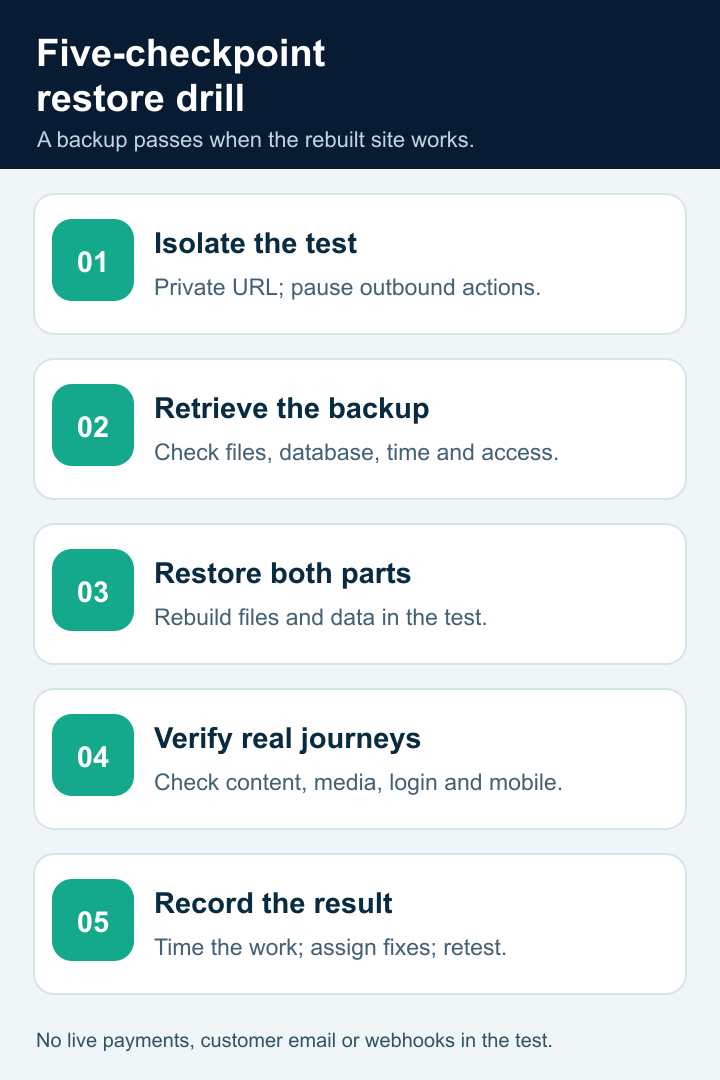
The five checkpoints help separate a verified recovery from a successful backup notification.
Use a truly isolated destination
Restore to a staging instance or another private environment, not over the live site. Before importing any data, restrict access and disable indexing. Turn off outbound customer email, payment capture, fulfillment, booking notifications, and scheduled jobs in the test environment. A restored shop can contain real customer data and old orders; a drill must not accidentally resend messages or process them again.
Keep the test URL separate from production and avoid reusing live webhooks. If you cannot isolate those integrations, pause the drill and ask your technical team to prepare a safe environment first. Do not discover that separation problem by running a test transaction.
Check the backup set before restoring
WordPress documents two essential parts of a site backup: the database and the files. The database holds posts, pages, settings, and often commerce records; the files include themes, plugins, uploads, and configuration. A database dump with no uploads can recover text but leave product images missing. A file archive without a matching database may not reconstruct current content.
Use one consistent backup point. Note the database export time, file archive time, archive size, and any reported job errors. Check that the copy is stored somewhere independent of the original hosting account. Follow your host or backup tool's restoration instructions; WordPress's administration handbook describes the usual sequence as restoring files, then importing the database, with configuration updated if database credentials changed. WordPress backup and restore guidance explains the components and order.
Run the restore and time each stage
Have the person who would handle a real incident perform the test. Start a timer when they request the backup, not when the import begins. Log these checkpoints:
- Backup located and access confirmed.
- Files restored and readable.
- Database imported without errors.
- Configuration and private test URL connected.
- Front end, admin login, and critical business journeys checked.
The elapsed time exposes forgotten dependencies: a missing backup password, a large media archive, an incompatible PHP version, or a plugin license that needs recovery. Do not publish a claimed “15-minute recovery” because a small database import took 15 minutes; measure the full route from request to usable site.
Test what customers would notice
Open the homepage and several real pages, including a recent article or product added after the previous backup. Then check media files, menus, search, mobile layout, and the admin dashboard. A restored homepage alone is not a pass.
For a lead-generation site, submit a test-only form to a safe internal destination and confirm the saved result without messaging customers. For a store, inspect product, cart, and checkout up to the point before any live charge or order submission. Verify orders and stock records read correctly in the isolated environment. If you cannot safely test a journey, record it as unverified rather than marking the whole recovery complete.
Check at least one page on a phone-size viewport. Broken images, login loops, stale links to the live hostname, and a missing SSL setup often appear only after the basic desktop homepage looks fine. Use an agreed sample list so the next drill tests the same critical paths.
Keep a one-page restore-drill record
| Record | What to write |
|---|---|
| Backup used | Timestamp, location, database and file archive identifiers |
| Isolation | Test hostname, indexing restriction, outbound services disabled |
| Timing | Request, retrieval, import, and usable-site timestamps |
| Checks | Pages, recent content, media, admin, forms, mobile, commerce read-only |
| Result | Pass, partial, or fail; exact missing data or broken step |
| Owner | Person who will fix the gap and date for the next drill |
This record turns a vague “we have backups” statement into something your team can act on. It also shows whether the backup age meets your recovery-point target and whether the full restore meets your recovery-time target. CISA advises small businesses to test both partial and full restores because scheduled backups can be incomplete or damaged, and recovery can take longer than expected. CISA small-business guidance is a useful independent reference.
Treat a failed drill as a useful finding
Do not overwrite the evidence with a fresh backup and call it fixed. Record which checkpoint failed, preserve the original backup, correct the cause, and repeat the restore with a new controlled test. Common gaps include an incomplete media directory, a database and file set from different times, storage on the same failed account, inaccessible credentials, and external integrations that were never documented.
Choose a drill cadence based on change rate and business impact. Repeat after a major migration, a new checkout or booking workflow, or a change to backup tooling. CISA's ransomware recovery guidance also recommends testing backup availability and integrity rather than assuming an archive can be used.
If a drill reveals that your hosting setup cannot provide an isolated restore or recoverable backup set, contact Hostao support with the failed checkpoint and your site type. We can review the hosting-side options with you; no particular recovery time or service feature is guaranteed by this checklist.