 ®
®
The Short Answer
A DNS TTL cutover checklist is a rehearsal sheet for the few minutes when your domain stops pointing at the old website and starts pointing at the new one. Export the current DNS zone, label which records belong to the website and which belong to email, lower the TTL on only the records that will change (and do it at least one full old-TTL period before the move), prove the new host works before DNS touches it, then switch, test and keep the old setup ready for rollback until traffic, forms and email are stable.
Most SME website moves do not fail because the new site is bad. They fail because a mail record disappeared, a form stopped sending, or nobody knew how to switch back. This checklist is built to stop those boring, expensive mistakes.
What TTL Actually Controls (and What It Doesn't)
TTL, or time to live, is a number in seconds attached to each DNS record. It tells recursive resolvers, such as your ISP's DNS or a public resolver, how long they may cache the answer before asking again. A record with a TTL of 86400 can be remembered for up to 24 hours. A record with a TTL of 300 is re-checked roughly every five minutes.
Two details matter for a cutover:
- Lowering the TTL only helps after the old TTL has expired. If your A record has a 24-hour TTL and you lower it to 300 an hour before the move, many resolvers will still hold the old answer for most of a day. Lower it early, then wait at least as long as the old value before you switch.
- TTL is a ceiling, not a guarantee. Some resolvers, office networks and browsers keep answers longer than they should. A low TTL makes the move faster and easier to reverse; it does not make it instant everywhere.
If you want a refresher on how a domain name finds a server at all, read our plain-English guide on how domain names connect to websites before you plan the switch.
A Practical Cutover Timeline
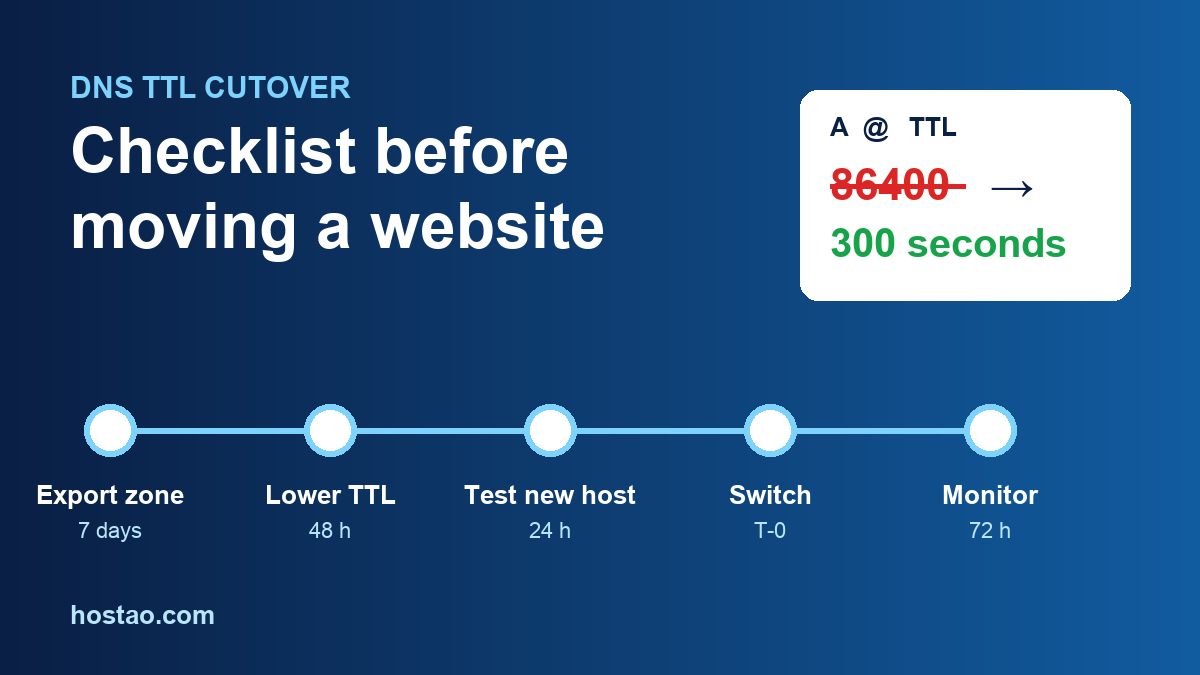
Here is a simple schedule that works for most small business sites with a 1-hour to 24-hour TTL today:
| When | What to do |
|---|---|
| 3–7 days before | Export the DNS zone, label every record, confirm who has access to the registrar and DNS host |
| 2 days before | Lower TTL on the records that will change (typically the apex A/AAAA and the www record) to 300 seconds |
| 1 day before | Check the new TTL is live with a DNS lookup tool; finish testing the new host through a temporary URL or hosts-file override |
| Cutover window | Change only the planned records, work through the checks below, keep the old server running |
| 24–72 hours after | Watch traffic, forms, email and errors; when stable, raise TTL back to a normal value such as 3600 |
Pick a cutover window outside your busiest hours. For many Gulf and Indian businesses that means avoiding the start of the working week and campaign launch days.
1. Export the Current DNS Zone First
Before you change a single value, capture the zone exactly as it works today. Cloudflare's DNS documentation describes DNS records as the instructions that make your website, applications and services reachable, which is exactly why a missing record can take down something you did not expect.
Save:
- the registrar and the current nameservers;
- every A, AAAA, CNAME, MX, TXT and SRV record, with its current TTL;
- SPF, DKIM and DMARC values;
- verification records for Google, Microsoft, Meta, payment gateways, CRMs and email tools;
- every subdomain, including old ones such as mail, cpanel or shop;
- proxy or CDN status, if a service like Cloudflare sits in front;
- who owns the registrar and DNS logins.
Use a proper zone export where your DNS host offers one. Screenshots are a fallback, not a plan.
2. Separate Website Records From Email Records
The most common small-business outage after a move is email, not the website. Cloudflare's email-records guide explains that mail delivery depends on records such as MX entries supplied by your email provider. Quotes, invoices, support replies and renewal notices all travel through those records.
Label every record in your export as one of:
- website traffic (A, AAAA, www CNAME);
- mail routing (MX, mail host records);
- email authentication (SPF, DKIM, DMARC);
- third-party verification;
- unknown.
Records marked unknown stay exactly as they are during the move. Investigate them afterwards. Deleting a TXT record you did not recognise is a classic way to break Google Workspace, Microsoft 365 or a payment provider's domain check.
3. Lower TTL Only on the Records That Will Change
Changing the TTL on every record adds risk without benefit. Note the original values, lower only the records that will point somewhere new, and confirm with a lookup tool that resolvers are seeing the new TTL before the window opens. Keep a written copy of the old values so you can restore them later.
If you are also changing nameservers, plan extra time. Nameserver changes at the registry level carry their own caching, often up to 48 hours, that your record-level TTL does not control. Where you can, move the zone to the new DNS host first, let it settle, and only then change the website records.
4. Prove the New Hosting Works Before DNS Moves
The new server should already serve the site correctly before any customer is sent there. Test it through a temporary URL or by pointing your own computer at the new IP with a hosts-file entry.
Check:
- files, database and media uploads are complete;
- the PHP or Node version matches what the site needs;
- the admin area loads and logins work;
- permalinks and internal links do not point at the old domain or a staging URL;
- caching and CDN settings are understood.
WordPress's migration documentation covers the same ground: back up files and the database, update site URLs, move the files, then refresh permalinks and fix any broken media or menu links. Our step-by-step WordPress migration guide walks through that part in more detail.
5. Make Sure SSL Is Ready on Day One
Visitors should never see a certificate warning on launch day. Confirm the certificate will cover both the apex domain and www, plus any subdomains that matter. If the certificate can only be issued after DNS points at the new server, schedule that step into the window and test HTTPS straight away. Check for mixed-content warnings and confirm renewals are automatic. Our SSL renewal monitoring checklist covers what to watch after launch.
6. Map Redirects If Any URL Changes
If page addresses change during the move, Google's site-move guidance recommends permanent server-side redirects, using 301 or 308 status codes, from each old URL to its closest new equivalent. Its redirects documentation adds that permanent server-side redirects are the most reliable way to tell both users and Search where content now lives.
Build a redirect map for service pages, blog posts with traffic, ad landing pages, pages with backlinks, and old campaign URLs. Sending every old URL to the homepage frustrates visitors and throws away search signals.
7. Test Forms, Email and WhatsApp Lead Paths
The homepage loading is the start of testing, not the end. In the cutover window, submit every contact and quote form and confirm the notification actually arrives. Send and receive email from the domain. Click every WhatsApp and phone button. Check that CRM webhooks, thank-you pages and conversion tags still fire.
For many SMEs, WhatsApp and email carry the real sales conversation. A site can look perfectly healthy while leads quietly disappear because an SMTP setting still points at the old server.
8. Agree the Rollback Plan Before You Start
Rollback is not failure; it is part of a professional move. Before the window opens, write down:
- where the latest file and database backups are;
- the old DNS values and how long the old server stays online (keep it running for at least a few days);
- what triggers a rollback, such as forms failing, checkout errors or email bouncing;
- who decides, and who tells the business owner.
Because you lowered the TTL in advance, switching the records back takes effect quickly for most visitors.
9. Monitor After the Cutover
Watch the apex and www domains, key landing pages, HTTPS, forms, inbound and outbound email, analytics, server error logs and paid ad destinations for at least the first 24 hours. A free uptime monitor helps here; we compare a few in our guide to free website uptime monitoring tools. Only raise the TTL back to normal once everything has been stable for a day or two.
Cutover Rehearsal Sheet
| Area | What to confirm | Owner |
|---|---|---|
| DNS export | Full zone saved with original TTLs | Domain owner |
| TTL | Changed records lowered 48 hours ahead | DNS owner |
| Website target | New server tested via hosts file or temp URL | Hosting team |
| MX, SPF, DKIM, DMARC untouched or migrated | Email owner | |
| SSL | Apex, www and key subdomains covered | Hosting team |
| Forms | Test submissions received | Site owner |
| Redirects | Changed URLs mapped with 301/308 | SEO or site owner |
| Backup | Files and database restorable | Hosting team |
| Rollback | Old values, trigger and decision-maker agreed | Business owner |
| Monitoring | 24–72 hour checks assigned | Support |
The best DNS cutovers are boring: everyone knows what will change, what must not change, who is watching, and how to reverse it.
Moving Your Site to Hostao?
If you are moving to Hostao, share your DNS export and this sheet with our support team before the window. Hostao can review your existing site and suggest the safest order for moving hosting, files, databases and email. Nobody can control every third-party cache or inbox provider, but a rehearsed cutover removes the avoidable mistakes. While you are in the registrar, it is also a good moment to run through our domain expiry protection checklist.
FAQ
What TTL should I set before a website migration?
A common choice is 300 seconds (five minutes) on the records that will change. Set it at least one full old-TTL period before the move: if the old TTL was 86400, lower it at least 24 hours ahead, and 48 hours gives a safer margin.
Does lowering TTL make DNS propagation instant?
No. It shortens how long most resolvers cache the answer, but some networks keep records longer. Expect most visitors to follow within minutes and a small tail to take longer.
Can moving my website break business email?
Yes, if MX, SPF, DKIM or DMARC records are removed or changed by mistake, or if the zone is moved to new nameservers without copying them. Label email records separately and leave them untouched unless email is moving too.
Should I change nameservers or just the A record?
Changing only the website records is usually lower risk because the rest of the zone stays put. Change nameservers only when you are deliberately moving DNS hosting, and copy the full zone to the new provider first.
How long should I keep the old hosting after the cutover?
Keep it running for at least several days, and longer for busy sites, so you can roll back and catch any visitors or emails still reaching the old server.
Sources
Editorial Team
Content strategist and editor specializing in web hosting guides, digital marketing, and business growth strategies.
Ready to Get Started with Hostao?
Compare Hostao hosting plans, review the current checkout terms, and choose the right starting point for your website.
View Hosting Plans