 ®
®
The Short Answer
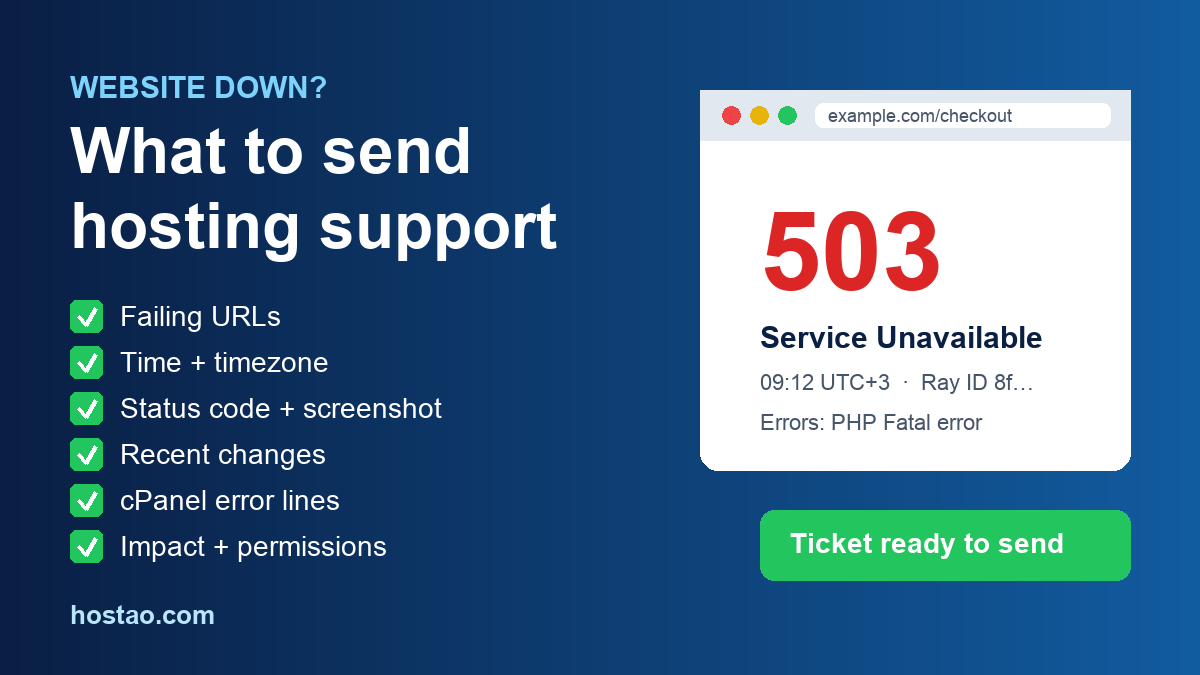
When your website goes down on cPanel hosting, the fastest support ticket is not the longest one. It is the one that lets the support engineer pick the right layer on the first read. Send the exact URLs that fail, the time you first saw the problem (with your timezone), the HTTP status code or full error text, a screenshot with the address bar visible, where and on what network you tested, anything that changed in the last 48 hours, and a few lines from cPanel's Errors page. Add what the outage is costing you and what support is allowed to touch. If you are mid-crisis, send the first three items now and the rest as a reply.
"My website is down" is a real emergency for a business owner. For the person reading the ticket, though, that sentence could mean a dozen different problems: an expired domain, a DNS edit that went wrong, an SSL certificate that did not renew, a PHP fatal error after a plugin update, a full disk, a database connection limit, a CDN rule, a firewall block, or a broken office Wi-Fi connection. Each one is checked in a different place. Good evidence saves the round trip of "Can you send a screenshot?" and gets the right person looking at the right log sooner.
Why Evidence Beats Urgency
Marking a ticket as urgent helps it get seen. It does not help anyone fix it. What shortens an outage is the gap between "ticket opened" and "cause found", and that gap is mostly filled with questions you could have answered in advance.
Compare these two tickets:
| Weak ticket | Strong ticket |
|---|---|
| "Site is down, please fix ASAP." | "Since 09:12 Bahrain time, every page on example.com returns 503. Admin also fails. Tested on office Wi-Fi and mobile data, Chrome and Safari. We updated a caching plugin at 08:55. The Errors page shows a PHP fatal error in that plugin's folder. Checkout is down, so this is costing orders. You may disable that plugin; please ask before restoring a backup." |
| Support must ask what, when, where and what changed. | Support can open the error log, confirm the plugin and act within the permission you gave. |
The strong version takes about five minutes to write. Those five minutes often save an hour.
1. List the Exact URLs That Fail
Do not report only the domain name. Give two or three real URLs and say which ones still work. A homepage that loads while checkout fails points to a different cause than a full-site outage.
Useful pages to test: the homepage, a normal inner page, the contact or quote form, the cart and checkout, the login or WordPress admin page, and any API or webhook endpoint you rely on. If only images or styling are broken, include the URL of one broken image or CSS file as well.
2. Give the Time and Your Timezone
Write when you first noticed the problem and when you last checked, for example "first seen 09:12, still failing at 09:25, Bahrain time (UTC+3)". Say whether it is continuous or comes and goes. Server logs, monitoring alerts, plugin updates and DNS changes are all matched by timestamp, and "this morning" does not match anything.
If you already run an uptime monitor, its alert time is the best timestamp you have. If you do not have one yet, our guide to monitoring website uptime with free tools shows how to set one up in a few minutes, so the next incident starts with hard data.
3. Capture the Status Code and the Full Error Text
An error message helps. The HTTP status code helps more. MDN groups response codes into classes, and the 5xx class means the server failed to fulfil a valid request. But a 500, 502, 503 and 504 lead down different paths:
- 500 usually points at the application itself, such as a PHP fatal error or a broken .htaccess rule.
- 502 and 504 suggest a gateway or proxy could not get a good or timely answer from the server behind it.
- 503 often means the service is overloaded, in maintenance, or deliberately limiting requests.
- 403 or 404 on pages that used to work suggests permissions, security rules or a changed path, not a server crash.
Also note who "signed" the error page. A page branded by Cloudflare, nginx, Apache, LiteSpeed or WordPress tells support which layer produced it. If you are not sure how to find the code, the screenshot and URL are enough, and support can check from their side.
4. Take One Full Screenshot Before You Refresh
Take the screenshot first, then experiment. Include the address bar, the whole error text, any Cloudflare Ray ID at the bottom of the page, and the step you were on if the error appears after submitting a form or paying. Do not crop out the URL. Do not refresh twenty times either; on some setups that trips security rules and adds noise to the very logs support will read.
5. Say Where, How and on What You Tested
Some outages are regional, cached or device-specific. Add your city or country, whether you used Wi-Fi or mobile data, the browser and device, whether a VPN was on, and whether a colleague elsewhere sees the same thing. A private or incognito window rules out a stale browser cache.
If the site fails only on your office network, support may look at DNS caching, an ISP problem or a firewall that has blocked your office IP after repeated failed logins. That is a very different fix from a server outage.
6. Write Down What Changed
Most outages have a before and an after. List anything that changed in roughly the last 48 hours, even if you think it is unrelated: plugin, theme or WordPress updates; a PHP version change in cPanel; DNS or nameserver edits; an SSL renewal; Cloudflare, cache or firewall changes; a migration; a code deploy; a payment gateway change; a big media upload; a new security plugin; a new ad campaign driving more traffic than usual.
Owning up to a change is not admitting fault. It is the most useful clue in most tickets. If the outage started right after a plugin update, our WordPress plugin update staging checklist is worth reading once things are stable, so the next update gets tested before it reaches customers. If a DNS move is involved, the DNS TTL cutover checklist explains what to check and how to roll back.
7. Copy a Few Lines From cPanel's Errors Page
If your site runs on cPanel, open Metrics → Errors. cPanel's documentation describes this interface as a display of the most recent entries in your web server's error log. For a business owner, that often shows the answer in plain sight: a PHP fatal error naming a plugin folder, a missing file, a permissions problem, or a memory or time limit being hit.
Copy the latest few lines that match the time of the outage, including the timestamp and the domain or subdomain. You do not need to understand them. Do not paste passwords, API keys or database credentials; if a line contains anything that looks secret, mention it rather than pasting it.
8. Mention Raw Access Logs for Intermittent Problems
cPanel's Raw Access interface lets you download the raw request logs for your domains. They are technical, but they matter when the problem comes and goes, affects one path only, or seems tied to traffic. In them, support can spot repeated 500 or 503 responses on one URL, bot or crawler spikes, floods of login attempts, very large file requests and traffic from a narrow IP range.
You do not need to download and attach them. A line such as "Raw access logs are enabled; happy to send the file for 09:00–09:30 if useful" is enough.
9. Separate Cloudflare Clues From Server Clues
If your domain goes through Cloudflare, the error page can come from Cloudflare's edge or from your server behind it. Cloudflare's own troubleshooting guide for 5xx errors recommends gathering details and contacting the hosting provider or site administrator for most of these errors. Its analytics documentation explains that comparing the edge status code with the origin status code helps show whether a problem starts at the origin or at the edge.
Include the Ray ID if one is shown, the edge and origin status codes if you can see them in the dashboard, and whether cached pages still load while the admin area or forms fail. Avoid pausing Cloudflare or changing DNS during the outage unless the owner agrees and you know how to undo it. A rushed DNS change can break email and SSL on top of the original problem.
10. State the Business Impact in One Line
Support teams prioritise better when the impact is specific. "Checkout returns 502 for all mobile users after the payment step, and a paid campaign is running" is far more useful than "site down". Say what is broken (orders, leads, logins, invoices, staff admin access), who it affects, and whether something time-sensitive is live right now.
11. Say What Support May and May Not Do
Give clear testing permission. That avoids a second wait while support asks. For example:
- You may test public pages and read the logs.
- You may clear or disable cache for testing.
- You may temporarily disable the plugin named in the error log.
- Please ask before restoring a backup, changing DNS or changing the PHP version.
Clear boundaries protect you and let support act quickly where you are comfortable.
A Copy-Paste Ticket Template
| Field | What to write |
|---|---|
| Subject | Website down – [domain] – [status code] since [time + timezone] |
| Affected URLs | 2–3 failing URLs, plus any that still work |
| Time | First seen, last checked, timezone; continuous or intermittent |
| Error | Status code and exact text, who branded the page, Ray ID if shown; screenshot attached |
| Tested from | City, Wi-Fi or mobile data, browser, device, VPN yes/no, second person yes/no |
| Recent changes | Everything in the last 48 hours, or "none we know of" |
| cPanel Errors | 3–5 matching lines, no secrets |
| Impact | What is broken, who is affected, anything time-sensitive |
| Permissions | What support may do now, and what needs your approval first |
Hostao customers can open a ticket from the Hostao support page. Before you do, check network status, because a known incident that is already being worked on changes what you need to send.
FAQ
What should I include in a website outage support ticket?
The failing URLs, the time with your timezone, the status code or error text, a screenshot with the address bar, where and how you tested, recent changes, a few lines from cPanel's Errors page, the business impact, and what support is allowed to do.
How do I know whether a 5xx error comes from Cloudflare or my host?
Look at who branded the error page and note the Ray ID. In Cloudflare analytics, comparing edge and origin status codes helps show whether the origin server or the edge is failing. Send both to support.
Which logs should I send to hosting support?
Start with the latest matching lines from cPanel's Errors page. For problems that come and go or affect only one path, offer the Raw Access logs for the outage window and let support decide whether they need them.
Should I change DNS or Cloudflare settings before support replies?
Not by default. DNS and CDN changes take time to spread, can affect email and SSL, and make diagnosis harder. Report first, and change only with a clear rollback plan.
Should I keep refreshing to see if the site is back?
Check every few minutes, not every few seconds. Rapid repeated refreshes can trigger security rules that block your IP and add noise to the logs support is reading.
Sources
- Cloudflare Docs: Cloudflare 5xx errors
- Cloudflare Docs: Status codes in zone analytics
- MDN Web Docs: HTTP response status codes
- cPanel Docs: Errors
- cPanel Docs: Raw Access
Editorial Team
Content strategist and editor specializing in web hosting guides, digital marketing, and business growth strategies.
Ready to Get Started with Hostao?
Compare Hostao hosting plans, review the current checkout terms, and choose the right starting point for your website.
View Hosting Plans