 ®
®
Direct Answer
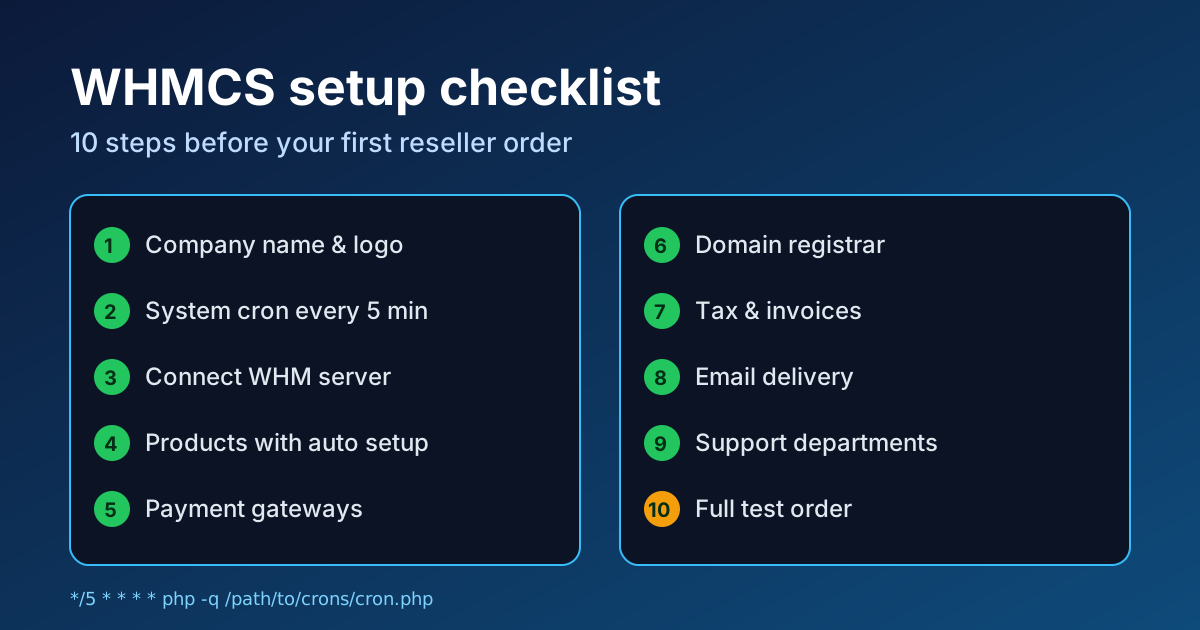
A new WHMCS install is only useful once it can take an order, bill for it, create the hosting account and answer the customer without you touching anything. For most new resellers that comes down to ten jobs: brand the install, get the cron running, connect your WHM server, build products with automatic setup, add payment gateways, connect a domain registrar, set tax and invoice rules, configure email, create support departments, and test the whole journey with a real order. Do them in that order and you avoid the classic launch problems: invoices that never generate, accounts that are never created, and tickets that land in nobody's inbox.
This checklist follows WHMCS's own Setup Tasks list, checked on 16 October 2026, plus the reseller-specific steps that list does not cover. Menu names refer to recent WHMCS versions and can move between releases.
Before You Start
Have these ready before you log in for the first time:
- Your WHM reseller login and server hostname. With Hostao reseller hosting, these come with your account.
- Your business details: legal name, address, tax registration if you have one, and a logo.
- At least one payment account, such as a card processor, PayPal or a bank account for transfers.
- A domain registrar account if you plan to sell domains.
- A support email address on your own domain, for example support@yourbrand.com.
If you are still deciding how WHMCS fits a reseller plan, our page on WHMCS licence options explains how availability depends on the plan, and the guide to unlimited reseller hosting with WHMCS covers the business side.
The 10-Step WHMCS Setup Checklist
| Step | Where in WHMCS | Done when |
|---|---|---|
| 1. Company name and logo | System Settings > General Settings | Logo shows on a test invoice |
| 2. System cron | Your server's cron, then automation status | Setup Tasks marks the cron as done |
| 3. WHM server | System Settings > Servers | Test Connection succeeds |
| 4. Products with auto setup | System Settings > Products/Services | A test order creates a cPanel account |
| 5. Payment gateways | Apps & Integrations | A test payment marks the invoice paid |
| 6. Domain registrar | Domain Registrars | A lookup returns real availability |
| 7. Tax, currency and invoices | General Settings and Tax Configuration | Test invoice shows correct tax |
| 8. Email sending | General Settings > Mail | Welcome email reaches an outside inbox |
| 9. Support departments | Support Departments | A test email creates a ticket |
| 10. End-to-end test order | Client area, as a customer | Order, invoice, account and emails all work |
1. Set your company name and logo
WHMCS uses these everywhere: the client area, invoices and every email. It is also the first item on WHMCS's Setup Tasks list. Use the same business name customers will see on their bank statement, which reduces payment disputes. While you are in General Settings, set your domain, the WHMCS system URL (use HTTPS) and the default country.
2. Get the cron job running
This is the step people skip, and it is the one that breaks the business quietly. The WHMCS cron runs everything automatic: invoice generation, payment reminders, late fees, suspensions, terminations, domain sync and ticket escalations. Without it, WHMCS looks fine but does nothing on its own.
For self-hosted installs, WHMCS recommends running the cron every five minutes, or as often as your hosting allows. Add the command shown in WHMCS's automation settings to the cron jobs in your cPanel account. After it runs for the first time, the Setup Tasks list marks it as complete. If you use WHMCS Cloud, the cron is handled for you.
Then review the automation settings themselves: how many days before the due date invoices are created, when overdue reminders go out, and how many days after the due date accounts are suspended. Generous but firm defaults work best for a new reseller. Suspending too quickly loses customers; never suspending trains them to pay late.
3. Connect your WHM server
Add your server under the servers section with its hostname, IP address and WHM credentials. Use an API token rather than your main password where your panel supports it, and give the server a clear name. Click Test Connection before saving. If the test fails, the usual causes are a wrong hostname, a firewall blocking the connection, or a token without the right privileges.
Fill in the nameservers too. WHMCS includes them in welcome emails, so customers point their domains at the right place from day one.
4. Build products with automatic setup
Create a product group first, such as "Web Hosting", then the products inside it. For each hosting product:
- On the Module Settings tab, choose the cPanel module, select your server and pick the matching WHM package.
- Choose when the account is created. "Automatically set up the product as soon as the first payment is received" is the safe choice for most resellers.
- Set prices for every billing cycle you want to offer, and leave the others disabled.
- Write a short, honest description. Customers compare disk, email accounts and support, not marketing adjectives.
Keep the line-up small at launch. Three plans that match your WHM packages are easier to support than ten. If you are unsure about control panel choices, our cPanel vs Plesk comparison explains the differences.
5. Activate payment gateways
WHMCS will not mark anything as paid until a gateway is active. Enable the gateways your customers actually use. If you do not want online payments yet, WHMCS suggests the Mail In Payment or Bank Transfer gateways so invoices still carry payment instructions. For cards, a merchant gateway lets WHMCS process payments directly and supports automatic recurring charges.
Run a small real payment through each gateway, then refund it. A gateway that looks configured but fails at checkout is one of the most expensive launch mistakes.
6. Connect a domain registrar
If you sell domains, activate your registrar module and add its API credentials. Import pricing for the extensions you plan to sell, check the margins, and switch on domain sync so expiry dates in WHMCS match the registry. Expired domains are a common reason customers leave a host, so pair this with the routine in our domain expiry protection checklist.
7. Set tax, currency and invoice rules
Set your default currency before taking any orders, because changing it later affects existing clients. Configure tax rules for the regions you sell to, add your tax registration number to invoices if you have one, and choose sequential invoice numbering if your accountant needs it. Generate a test invoice and check every line before going live.
8. Make sure email is delivered
Every important WHMCS action sends an email: order confirmations, welcome emails with login details, invoices and ticket replies. Send them from an address on your own domain and set up SPF, DKIM and DMARC for it. Using an SMTP service instead of the server's default mail usually improves delivery. Then send a test to a Gmail or Outlook address and check that it lands in the inbox, not spam. Our business email setup guide covers the DNS records.
Edit the welcome email template while you are here. Remove anything that does not apply to your plans and add your support link.
9. Create support departments
WHMCS needs at least one support department before customers can open tickets. Start with two: Technical Support and Billing. Connect each to its own email address with email piping or import, so customer emails become tickets automatically. Add the team members who answer each one and set up a notification rule, by email or Slack, so new tickets are seen quickly.
10. Place a full test order
Log out, open the client area as a customer and buy your cheapest plan with a real payment method. Check that:
- The order and invoice emails arrive.
- The payment marks the invoice as paid.
- The cPanel account is created on your server.
- The welcome email arrives with correct nameservers and login details.
- A ticket sent by email appears in the right department.
Then cancel, terminate the test account and refund the payment. Only now are you ready to take real customers.
Optional Extras After Launch
WHMCS also lets you resell extras such as SSL certificates and website security through its built-in MarketConnect platform. They are optional. Add them once the basics run smoothly, and only sell what you can support. If you sell SSL, our SSL renewal monitoring checklist helps you avoid expired certificates on customer sites.
Common Mistakes
- No cron, or a broken one. Check the automation status on the dashboard weekly for the first month.
- Products without a module. The order is taken, but no account is created and the customer waits.
- Default email templates. Wrong nameservers or a missing support link create avoidable tickets.
- Too many plans. Every plan is another set of prices, packages and questions to maintain.
- Never testing payments. A gateway error you discover from an angry customer is far more expensive than a test refund.
Frequently Asked Questions
How often should the WHMCS cron run?
WHMCS recommends every five minutes for self-hosted installs, or as frequently as your hosting allows. WHMCS Cloud runs it for you.
Does WHMCS create cPanel accounts automatically?
Yes, when a product uses the cPanel module, is linked to a connected WHM server and is set to set up automatically, for example after the first payment.
Can I use WHMCS without online payments?
Yes. The Mail In Payment and Bank Transfer gateways let you send invoices with payment instructions and mark them paid manually.
Do I need a domain registrar to use WHMCS?
No. It is only needed if you want to sell or manage domains. Hosting-only resellers can skip it.
Is WHMCS included with Hostao reseller hosting?
It depends on the plan. Check the current plan details on our WHMCS page or ask our support team before you order.
Sources
- WHMCS Documentation, Setup Tasks, checked 16 October 2026.
- WHMCS Documentation, Get Started with WHMCS.
Editorial Team
Content strategist and editor specializing in web hosting guides, digital marketing, and business growth strategies.
Ready to Get Started with Hostao?
Compare Hostao hosting plans, review the current checkout terms, and choose the right starting point for your website.
View Hosting Plans